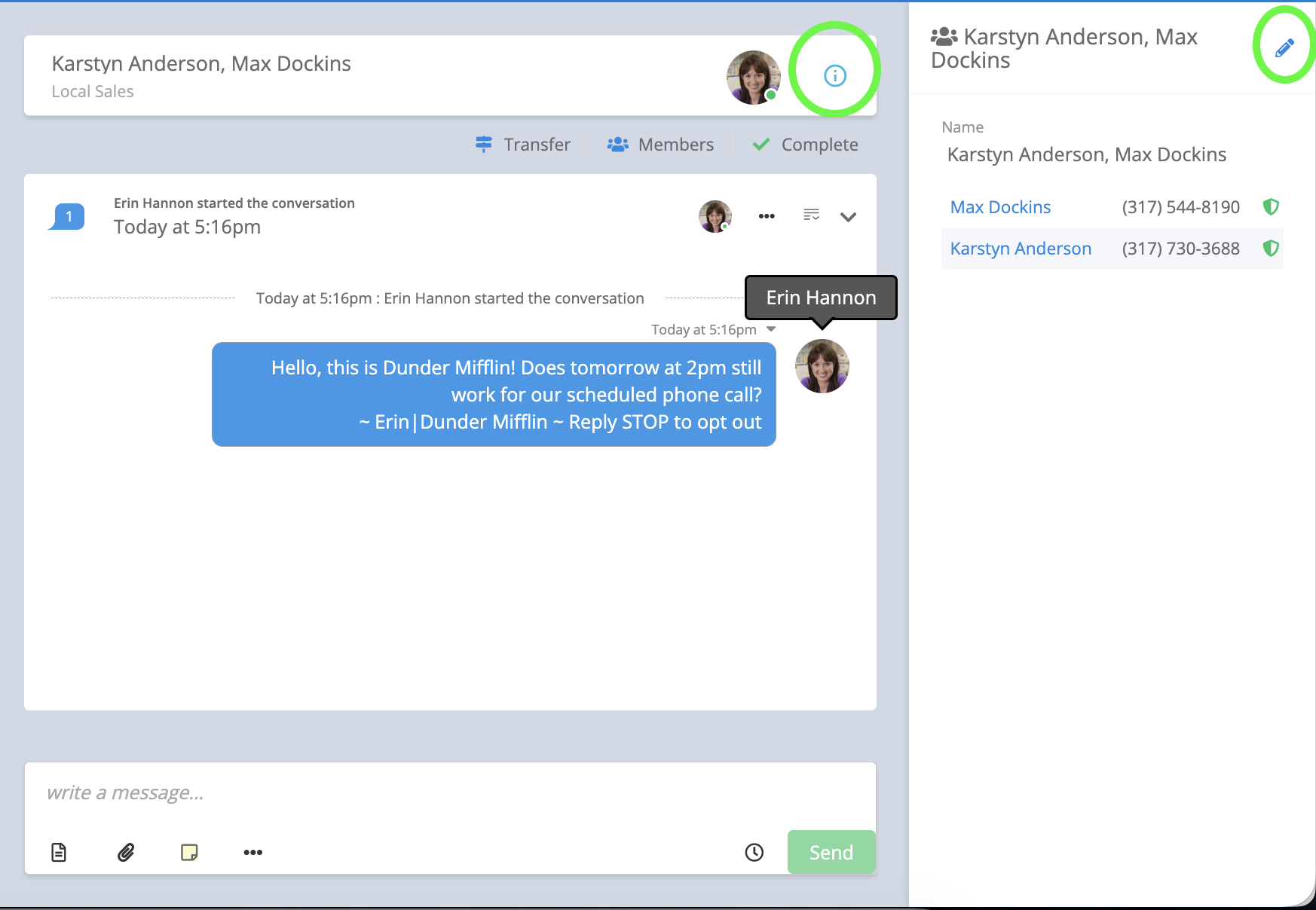
Captivated can send and receive group messages up to 10 people. There are a couple of ways to initiate a group message.
1. The green new message button in the top right hand corner of your screen
2. The contacts section in the left-hand menu
Let’s review how to send a group message from the green new message button. First navigate to the green new message button in the top right-hand corner of your screen. Ensure you are on the SMS option. The group message option will populate once you have selected more than one contact.
The second option is initiated via the contacts section on the left-hand side of your screen. You must select the checkbox for more than one contact to initiate a group message.
After you select “send a group” message a separate screen will pop up where you can verify the numbers and choose the phone number you’d like to send from.
If someone is opted out of a particular channel/phone number, you cannot send the group message. Remove the contact by hitting the red remove icon or choose a different channel to send from.
Once all contacts are chosen and opted in, hit continue to send your group message.
Type your message in the write a message field or choose a template. Click on the info icon at the top right to name your group message (optional) and see the numbers of those you are texting.
If one contact opts out, you will no longer be able to message in the group thread. You will need to initiate a new group thread.
Keep in mind, you cannot text more than 10 people in a single group message.