Pinning conversations lets you keep important conversations within easy reach. Whether you’re waiting on a customer response, working through an ongoing issue, or simply have conversations you reference often, pinned conversations stay easy to find.
Pinned conversations appear in two places:
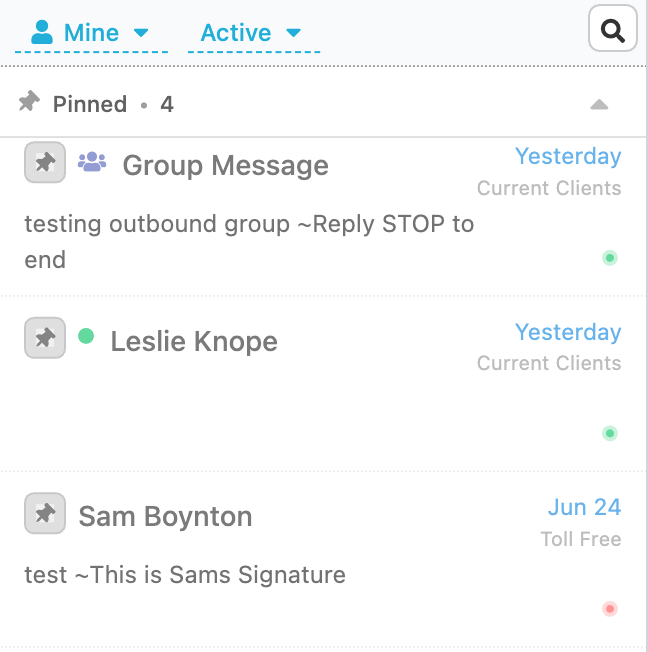
At the top of your Conversations list under the Pinned section.
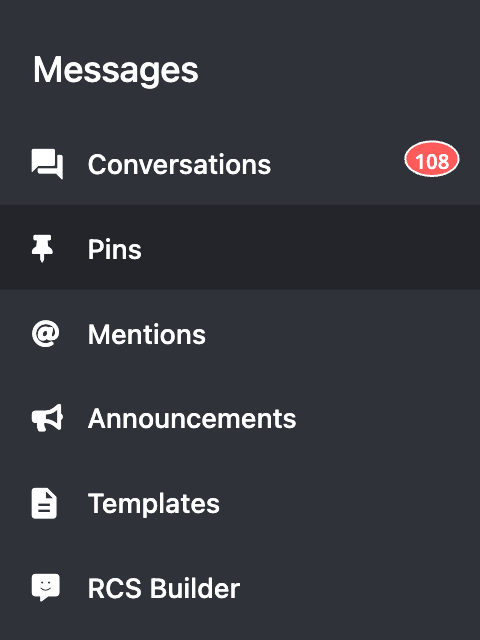
In the dedicated Pins view in the left Messages menu.
Pins are personal to your account. Only you can see the conversations you’ve pinned.
Pinning Conversations
To pin a conversation:
Open Messages > Conversations.
Hover over the conversation you’d like to pin.
Click the Pin icon (or select Pin from the conversation menu).
The conversation immediately moves into the Pinned section at the top of your Conversations list and is also added to your Pins view.
Organizing Your Pins
You can customize how your pinned conversations are displayed.
Choose between:
Pin Order – Displays conversations in the order you pinned them.
Recent Activity – Displays conversations with the newest activity first.
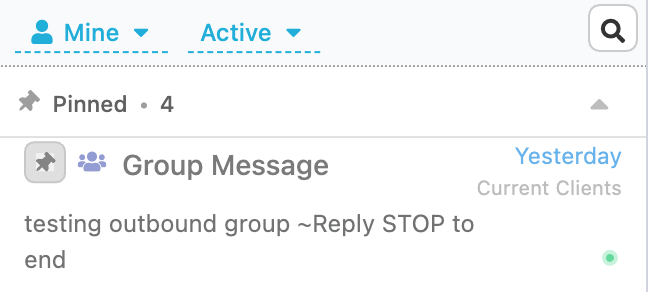
You can also collapse the Pinned section using the chevron if you’d like more room in your Conversations list.
Collapsing the Pinned Section
If you need more room in your conversation list, click the arrow next to Pinned to collapse the section.
Click it again at any time to expand your pinned conversations.
Viewing Your Pinned Conversations
Pinned conversations can be accessed in two places.
Conversations
Pinned conversations appear in a Pinned section at the top of your Conversations list. The banner displays how many pinned conversations match your current view.
Pins
Select Pins from the left Messages menu to view all of your pinned conversations in one place.
Unlike the Conversations list, the Pins view always displays every conversation you’ve pinned, regardless of any conversation filters you’ve selected.
Unpinning a Conversation
To remove a pin:
Hover over the pinned conversation.
Click the Pin icon again (or choose Unpin from the conversation menu).
The conversation returns to its normal position in your Conversations list.
If you remove your last pinned conversation, the Pinned section will disappear until you pin another conversation.
How Pins Work with Filters
The Pinned section at the top of your Conversations list follows the same filters you’re using for conversations.
For example:
Switching between Mine and Everyone’s
Switching between Active, Completed, and All
updates the pinned count to show only conversations that match those filters.
If none of your pinned conversations match the current filter, the Pinned section will disappear. Your pins haven’t been removed—they simply don’t match your current view.
The Pins page works differently. It always shows every conversation you’ve pinned, regardless of which filters are selected in the Conversations list.
Your Pins Across Devices
Your pinned conversations are tied to your Captivated account, so they’ll follow you wherever you sign in.
Your display preferences—such as your selected sort order and whether the Pinned section is expanded or collapsed—are saved separately on each device you use.